Overview
I was tired of Apple and their shenanigans. So, what’s the alternative? Linux on a MacBook (kind of) works, if your idea of a fun weekend is tinkering. And on the newer Apple Silicon machines, the best option is Fedora-based. No Debian for me. That was a no-go.
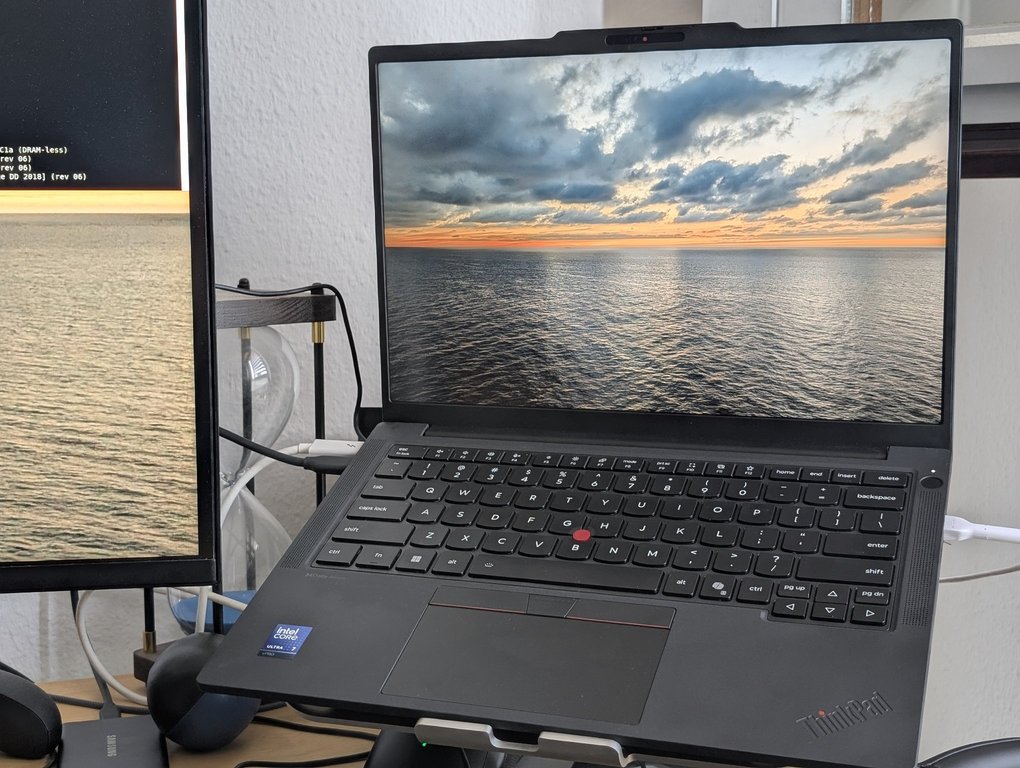
I have a desktop PC for gaming, which would make a great workstation. But a hefty CPU and GPU come with a hefty energy bill. So I went shopping for a laptop to be my daily driver for the next 5+ years, and picked a Lenovo ThinkPad T14 Gen 7: an Intel Core Ultra 7 365 (Panther Lake), Intel graphics, 32 GB of memory and a 1 TB NVMe drive.
An off-the-shelf business laptop, and Phoronix says it should work fine with Linux? I didn’t foresee any issues with that.
Yeah. About that.
Spoiler: what you need
To save you some time:
- Internet on the laptop. Wi-Fi won’t work until the very end. The built-in Ethernet port works right away, and so does USB tethering from your phone.
- Or an external drive and a second computer to download things and carry them over. Doable, but painful. Trust me on this one.
- About an hour, or two, most of it watching a kernel compile. The short version: Debian 13 ships kernel 6.12, which is too old for this hardware. Wi-Fi, Bluetooth, sound and accelerated graphics need a newer kernel, newer firmware and a newer Mesa. Ethernet, touchpad, webcam and fingerprint reader work out of the box.
Debian 13
The easy road would probably be to install Fedora and go with the latest and greatest. Personally, I’m a Debian guy, because I know how to use it as a tool. It’s a personal preference, not a religion.
I fetched the full Debian 13 DVD image and made a bootable external SSD from it. That way I had most packages at hand, just in case Wi-Fi didn’t work. (Spoiler: it didn’t.)
Step 1: Disable Secure Boot
In the BIOS. We’ll run a self-built kernel later, and that one isn’t signed.
Step 2: Boot from the external drive
Press F1 at the red ThinkPad logo to get the boot menu/BIOS. Or Fn+F1, depending on how your Fn lock is set. You’ll spend more time than you’d like guessing whether you actually hit the key in time. Or if you needed the Fn button or not. Good luck!
Step 3: Install
Nothing special here. Afterwards you have a laptop that works, in the sense that you can do something with it. No Wi-Fi, no Bluetooth, no sound, and the graphics run in software. Plug in a network cable or tether your phone.
From here on, everything runs as root. Use su - with the dash, not a plain su. Without the dash, /usr/sbin isn’t in your PATH, and commands like depmod and update-grub mysteriously go missing. Ask me how I know.
Step 4: Full trixie repositories plus backports
An install from the DVD may leave apt pointing at the DVD only. Replace that with the full trixie repositories, plus backports:
cat > /etc/apt/sources.list.d/debian.sources <<'EOF'
Types: deb
URIs: http://deb.debian.org/debian
Suites: trixie trixie-updates trixie-backports
Components: main contrib non-free non-free-firmware
Signed-By: /usr/share/keyrings/debian-archive-keyring.gpg

Types: deb
URIs: http://security.debian.org/debian-security
Suites: trixie-security
Components: main contrib non-free non-free-firmware
Signed-By: /usr/share/keyrings/debian-archive-keyring.gpg
EOF
sed -i 's/^deb cdrom/# deb cdrom/' /etc/apt/sources.list
apt update && apt upgrade
Step 5: Graphics and audio from backports
Only the graphics and audio userspace comes from backports. Everything else stays on plain trixie. Trixie’s own Mesa doesn’t know Panther Lake and falls back to llvmpipe, which means your shiny new GPU sits there doing nothing while the CPU draws every pixel. Panther Lake support is on by default from Mesa 25.2.
apt install -t trixie-backports \
  libgl1-mesa-dri libglx-mesa0 libegl-mesa0 libgbm1 mesa-vulkan-drivers \
  mesa-va-drivers mesa-vdpau-drivers \
  alsa-ucm-conf alsa-utils
apt install mesa-utils vulkan-tools
Step 6: linux-firmware
Two firmware sets are needed, and neither comes from a Debian package: the latest linux-firmware, and the SOF audio firmware. First, remove Debian’s old SOF package so it can’t overwrite the newer files later, and install git:
apt purge firmware-sof-signed
apt install git curl
I cloned linux-firmware to /usr/src/linux-firmware and used its copy-firmware.sh to put the files into /lib/firmware/updates. The kernel looks in that directory before /lib/firmware, so it overrides Debian’s firmware without touching it.
git clone --depth 1 https://git.kernel.org/pub/scm/linux/kernel/git/firmware/linux-firmware.git /usr/src/linux-firmware
cd /usr/src/linux-firmware && ./copy-firmware.sh /lib/firmware/updates
No Internet? Download the linux-firmware-*.tar.xz from kernel.org to your external drive instead, unpack it on the laptop, and run the same copy-firmware.sh.
This brings the Wi-Fi (iwlwifi-sc-a0-wh-b0-*), Bluetooth (intel/ibt-*), GPU (i915/xe3lpd_dmc.bin, xe/ptl_*) and NPU (intel/vpu/vpu_50xx_v1.bin) files. I have not tested the NPU. (Yet.)
Step 7: SOF audio firmware
The audio DSP firmware and its topology files live on GitHub. Grab the latest sof-bin-*.tar.gz and run its install.sh, which puts everything into /lib/firmware/intel:
cd /tmp
tar -xzf sof-bin-*.tar.gz --no-same-owner
cd sof-bin-*/ && ./install.sh
The --no-same-owner makes sure the files end up owned by root, not by whatever user ID the tarball was packed with.
Step 8: Bake a new kernel
When I wrote this, the newest stable kernel had just moved from 7.2.14 to 7.3.1. On 7.2.14 the internal panel froze until I booted with xe.enable_psr=0. On 7.3.1 that fix is no longer needed. Even better: with 7.3.1 that same parameter makes the screen flicker on and off. So: no boot parameters, just compile the latest stable kernel.
Install the build tools (they’re also on the DVD, if you’re still offline) and get the source from kernel.org:
apt install build-essential bc bison flex libssl-dev libelf-dev pahole \
            cpio kmod rsync zstd xz-utils libncurses-dev
mkdir -p /usr/src/build && cd /usr/src/build
curl -LO https://cdn.kernel.org/pub/linux/kernel/v7.x/linux-7.3.1.tar.xz
tar xf linux-7.3.1.tar.xz && cd linux-7.3.1
I started from Debian’s own kernel config and changed only a handful of things. The signing key settings have to be cleared, because Debian’s config points to certificates you don’t have. BTF is needed by systemd and eBPF tools. And the shiny new drivers we need (DRM_XE, IWLMLD, BT_INTEL_PCIE) get built as modules:
cp /boot/config-$(uname -r) .config
scripts/config --set-str SYSTEM_TRUSTED_KEYS "" --set-str SYSTEM_REVOCATION_KEYS ""
scripts/config --disable DEBUG_INFO_NONE --enable DEBUG_INFO_DWARF_TOOLCHAIN_DEFAULT \
               --enable DEBUG_INFO_REDUCED --enable DEBUG_INFO_BTF
scripts/config -m DRM_XE -m IWLWIFI -m IWLMVM -m IWLMLD -m BT_INTEL_PCIE
make olddefconfig
Then let it cook. The ThinkPad has a nice CPU, but Debian’s config builds thousands of modules, so it takes about 42 minutes. Later on, I moved the compiling to a big, hefty desktop, which does it in about 18 minutes. After that, install the kernel and its modules, build the initramfs, and let GRUB do its magic:
time make -j$(nproc)
V=$(make -s kernelrelease)
make modules_install INSTALL_MOD_STRIP=1
cp arch/x86/boot/bzImage /boot/vmlinuz-$V
cp System.map /boot/System.map-$V
cp .config /boot/config-$V
depmod $V
update-initramfs -c -k $V
update-grub
GRUB boots the newest kernel by default. Debian’s 6.12 stays in the menu under “Advanced options”, in case something goes sideways.
Step 9: Reboot and check
After the reboot, stuff should just work. Here’s what it looks like on mine.
Kernel:
$ uname -a
Linux tycho 7.3.1 #1 SMP PREEMPT_DYNAMIC Sun Nov  1 08:39:29 UTC 2026 x86_64 GNU/Linux
Wi-Fi:
$ sudo dmesg | grep iwlwifi
[    4.852052] iwlwifi 0000:00:14.3: Detected Intel(R) Wi-Fi 7 BE211 320MHz
[    4.857248] iwlwifi 0000:00:14.3: loaded firmware version 107.1b444747.0 sc-a0-wh-b0-c107.ucode op_mode iwlmld
[    5.542189] iwlwifi 0000:00:14.3 wlp0s20f3: renamed from wlan0
Bluetooth:
$ sudo dmesg | grep hci0 | grep Success
[    5.508716] Bluetooth: hci0: Fseq status: Success (0x00)
Graphics:
$ glxinfo -B | grep renderer
OpenGL renderer string: Mesa Intel(R) Graphics (PTL)
Vulkan (the llvmpipe line is Mesa’s software fallback, which is always listed):
$ vulkaninfo --summary | grep deviceName
  deviceName         = Intel(R) Graphics (PTL)
  deviceName         = llvmpipe (LLVM 19.1.7, 256 bits)
GPU firmware:
$ sudo journalctl -k -b | grep -iE 'dmc|guc'
xe 0000:00:02.0: [drm] Finished loading DMC firmware i915/xe3lpd_dmc.bin (v2.36)
xe 0000:00:02.0: [drm] Tile0: GT0: Using GuC firmware from xe/ptl_guc_70.bin version 70.72.1
Audio:
$ sudo dmesg | grep -i sof | grep tplg
[    5.416640] sof-audio-pci-intel-ptl 0000:00:1f.3: loading topology: intel/sof-ipc4-tplg/sof-hda-generic-2ch.tplg
And for comparing with your own machine, the interesting parts of lspci:
00:02.0 VGA compatible controller: Intel Corporation Panther Lake [Intel Graphics]
00:0b.0 Processing accelerators: Intel Corporation Panther Lake NPU (rev 08)
00:14.3 Network controller: Intel Corporation Device e440 (rev 01)
00:14.7 Bluetooth: Intel Corporation Device e476 (rev 01)
00:1f.3 Audio device: Intel Corporation Device e428 (rev 01)
00:1f.6 Ethernet controller: Intel Corporation Ethernet Connection (25) I219-LM (rev 01)
What’s next
You’ll have to build a new kernel every now and then, mostly for security fixes. Stable point releases (7.3.1 to 7.3.2) are small, so patching the existing source tree and rebuilding only takes a few minutes. (we all know how that will go, wink)
Update the firmware every month or two as well. The files in /lib/firmware/updates always win over Debian’s packages, so a stale copy would hide newer firmware that Debian ships. Mesa and ALSA from backports update with a normal apt upgrade.
All of this should go away with the next Debian release. Once it comes off the press, the hardware should be supported out of the box.
Daily life
My ThinkPad is connected to an external screen via USB-C/Thunderbolt. It just works. I tested the fingerprint reader for this article: it works with Debian’s stock fprintd, even for sudo. The webcam works fine as well.
So far the ThinkPad does its job really well. It has fans, but I only really hear them when compiling a Linux kernel. During everyday use (stuff in the browser), they stay silent. If you’re looking for recent hardware that works with Linux, the ThinkPad T14 Gen 7 (Intel) is a good pick. Give it a weekend first.